
Checklist items are individual tasks or steps within a checklist. You can create specific checklist items for each page on your website.
To Set Rules for a Checklist Item:
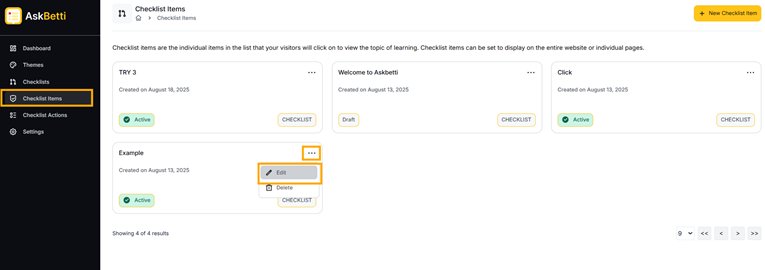
- Go to the Checklist Items section in the main menu. Here you will see a list of your existing checklist items.
- Click on the three dots in the top right corner of the item name.
- You’ll see the options to Edit, and Delete. Select Edit
- Click on Configure tab.
- Set rules for the checklist item by clicking on + Add a Target,
- Choose a Rule: Use the dropdown menu to select a rule.
- Equals: The URL must exactly match the text you enter.
- Not Equals: The URL must not be an exact match.
- Contains: The URL must contain the specified text.
- Not Contains: The URL must not contain the specified text.
- Starts With: The URL must start with the specified text.
- Not Starts With: The URL must not start with the specified text.
- Ends With: The URL must end with the specified text.
- Not Ends With: The URL must not end with the specified text.
- Regex (Regular Expression): Use this for advanced, flexible matching patterns. This rule is for users with knowledge of regular expressions.
- URL: Enter the specific URL or text you want to target.
- Targeting Condition: Choose a condition for the rules.
- AND: All the rules must be true for the item to be shown.
- OR: At least one of the rules must be true for the item to be shown.
Check Page Targeting: You can test your rules by entering a URL in the field and click Check. The system will tell you if the URL matches your rules.
Note: To remove a target, click on the bin icon.
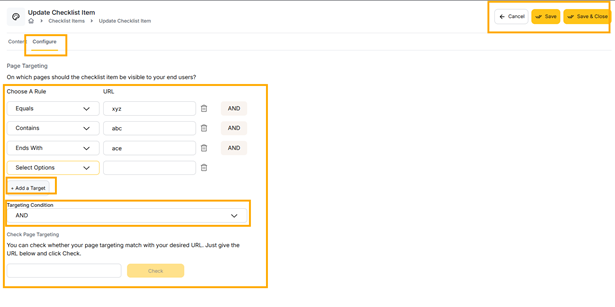
- Click on Save or Save & Close to save the changes.
If you have any questions or need further assistance, please contact our support team.