
Checklist items are individual tasks or steps within a checklist. You can create specific checklist items for each page on your website.
Here is a guide to create a new checklist item.
1. Navigate to Checklist Items
From the main dashboard, go to the Checklists menu on the left side. Then, click on Checklist Items.
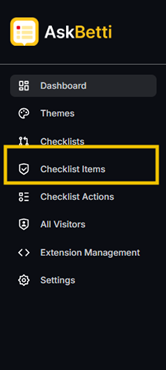
2. Create a New Checklist Item
 On the top right of the Checklist Items page, click the + New Checklist Item button.
3. Fill in the Details (Content Tab)
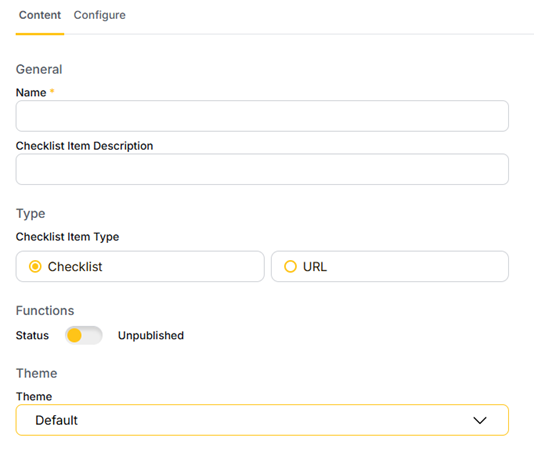
After clicking the button, a new window will appear with a Content tab. Here, you need to provide the basic information for your checklist item.
- Name: Give your checklist item a name. This is a required field.
- Checklist Item Description: Add a short description of what the item does.
- Type: Choose the type of item.
- Checklist: A simple checklist item.
- URL: A link that opens a URL. If you select this, you must also provide the URL and choose whether it opens in a new tab.

- Functions:
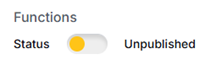
- Status: You can set the status to Published or Unpublished. Published items are visible to your users.
- Theme: Choose a theme for the item from the dropdown menu.
4. Configure Page Targeting (Configure Tab)
Next, click on the Configure tab. This is where you decide which pages your checklist item will be visible on. You can set rules based on the URL.
- Choose a Rule: Use the dropdown menu to select a rule.
- Equals: The URL must exactly match the text you enter.
- Not Equals: The URL must not be an exact match.
- Contains: The URL must contain the specified text.
- Not Contains: The URL must not contain the specified text.
- Starts With: The URL must start with the specified text.
- Not Starts With: The URL must not start with the specified text.
- Ends With: The URL must end with the specified text.
- Not Ends With: The URL must not end with the specified text.
- Regex (Regular Expression): Use this for advanced, flexible matching patterns. This rule is for users with knowledge of regular expressions.
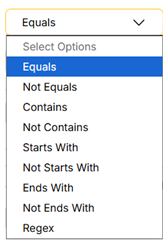
- URL: Enter the specific URL or text you want to target.
- Targeting Condition: Choose a condition for the rules.
- AND: All the rules must be true for the item to be shown.
- OR: At least one of the rules must be true for the item to be shown.
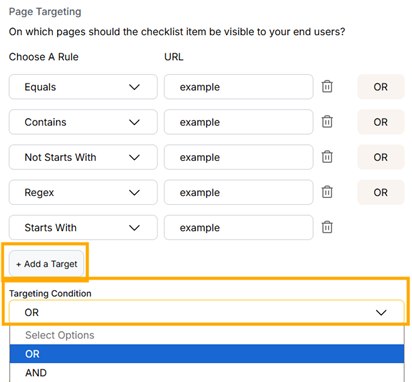
- Check Page Targeting: You can test your rules by entering a URL in the field and clicking Check. The system will tell you if the URL matches your rules.
Examples of Page Targeting
- Example 1: You want the item to appear on your home page at https://www.yourwebsite.com/.
- Choose rule: Equals
- URL: https://www.yourwebsite.com/
- Example 2: You want the item to show on all pages in the blog section of your website, such as https://www.yourwebsite.com/blog/article1.
- Choose rule: Contains
- URL: /blog/
- Example 3: You want the item to appear on all pages except your About page.
- Choose rule: Not Contains
- URL: /about
- Example 4: You want the item to appear only on pages that are in the /products directory AND do not contain the word discount.
- Add two rules and set the Targeting Condition to AND.
- First Rule: Contains, URL: /products/
- Second Rule: Not Contains, URL: discount
5. Save the Checklist Item
 Once you have filled in all the details and configured the targeting, click the Save or Save & Close button on the top right. Your new checklist item has been created.
If you have any questions or need further assistance, please contact our support team.