
Themes in AskBetti define the look and feel of your onboarding content. A theme is a set of colors, typography, and display features that determine how your checklists, tooltips, and other elements will appear on your website.
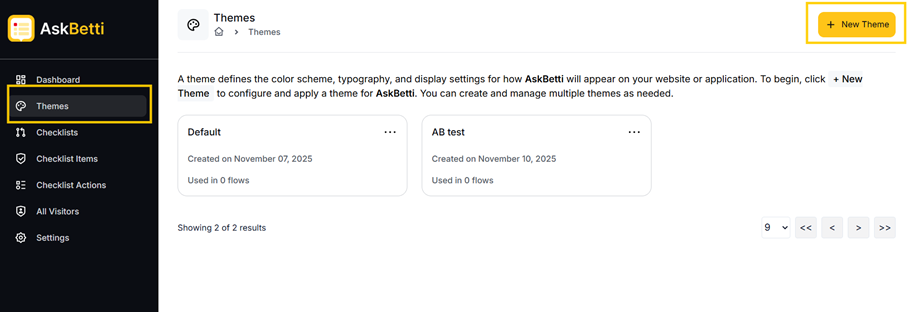
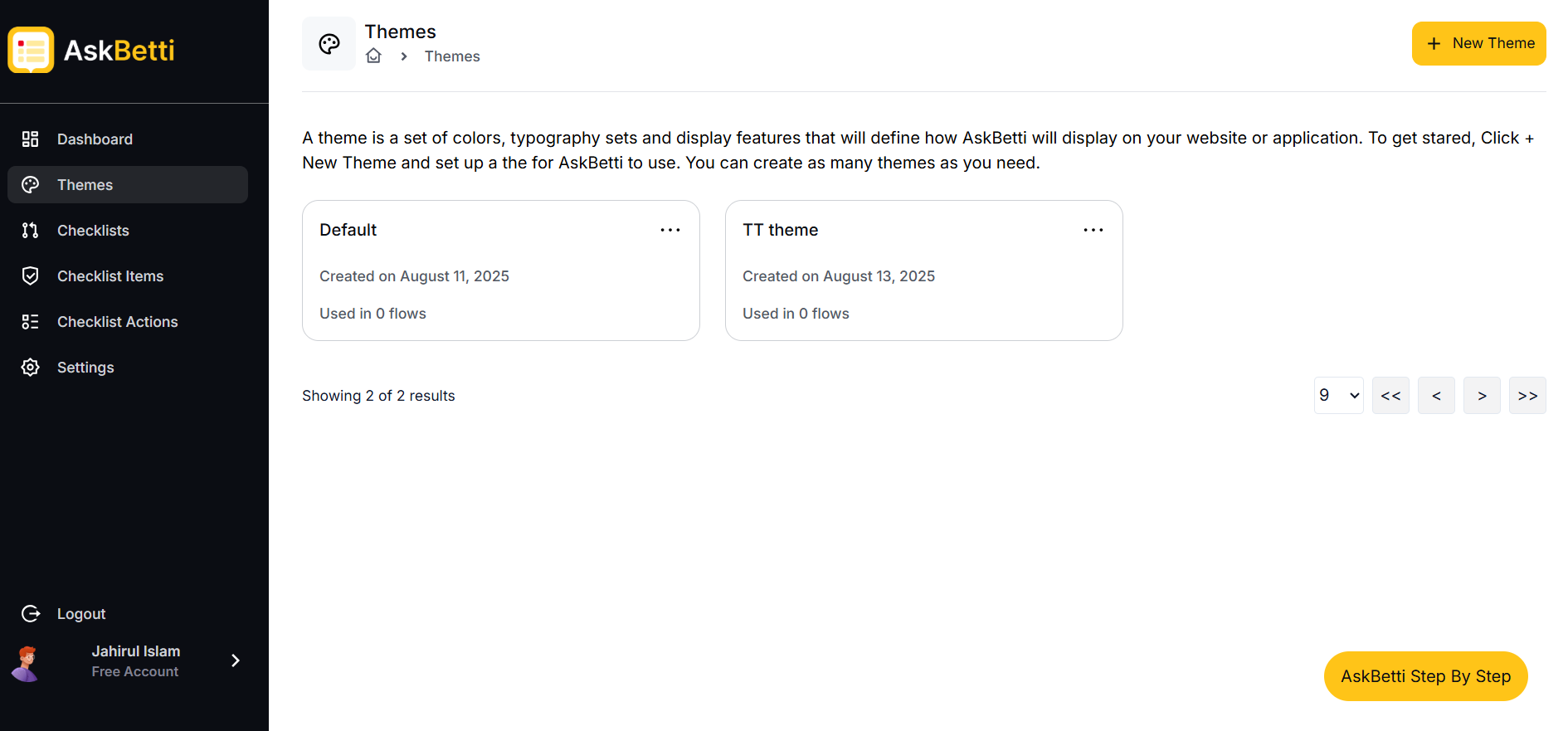
To get started, go to the Themes section in the main menu. Here you will see a list of your existing themes.
You can create a new theme by clicking New Theme in the top right corner. You can also click on an existing theme to edit it.
Within a theme, you can customize the following settings:
 General
- Click on New Theme
- Theme Title: Give a name to your theme.
- AskBetti Branding: Choose to show or hide the AskBetti branding.
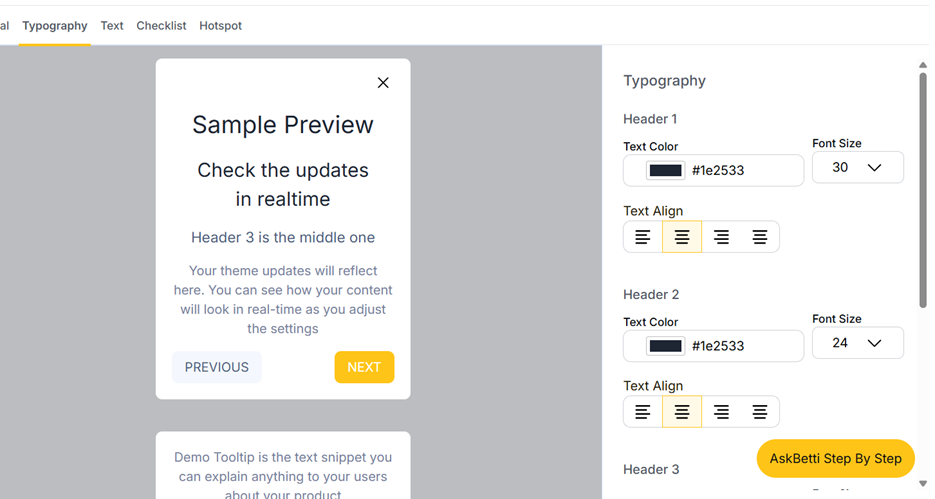
- Step Style: Customize the appearance of tooltips and pop-ups.
- Background Color: The color of the main content box.
- Tooltip Highlight Box: The color of the highlighted area around an element.
- Backdrop Color: The color of the overlay behind the content box.
- Backdrop Opacity: The transparency of the backdrop.
- Box Roundness: Set the corners of the content box to Default, Sharp, or Round.
Typography
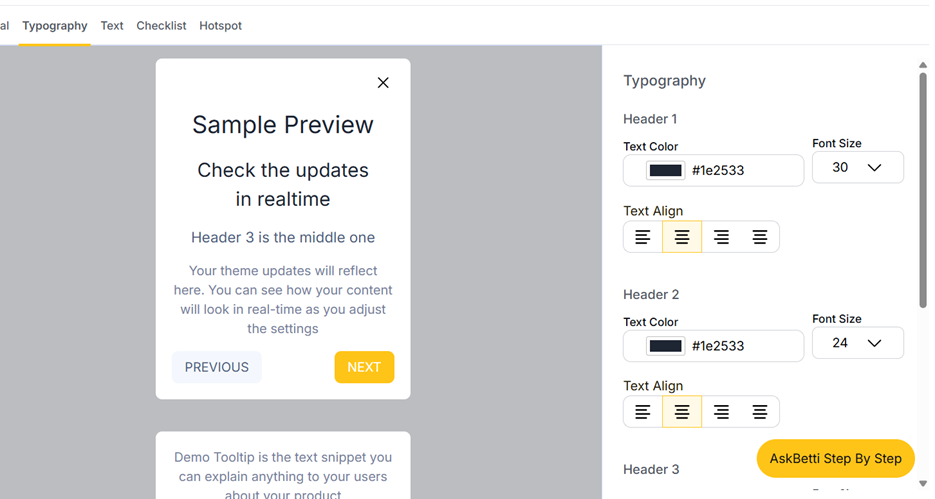
- Header 1, Header 2, Header 3: Customize the text color and font size for each header type.
- Body Text: Set the color and font size for the main body text.
- Text Align: Choose the text alignment (left, center, or right) for each text type.
Text
- Requisite Buttons: Change the text for the Previous, Next, and Done buttons.
- Dismiss Option: Edit the text for the Do not show again option.
- Input: Change the placeholder text for input fields.
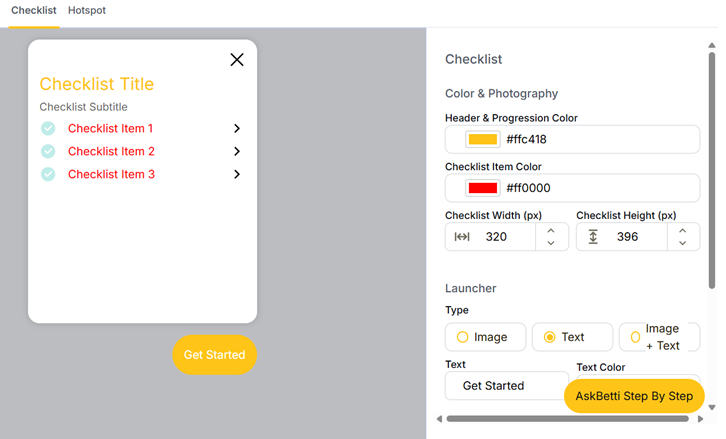
Checklist
- Header & Progression Color: Set the color for the checklist title and progress elements.
- Checklist Item Color: Set the color of the checklist items.
- Checklist Width & Height: Adjust the size of the checklist box in pixels.
- Launcher: Customize the button that launches the checklist.
- Type: Choose an image, text, or both for the launcher.
- Text: Change the text on the launcher.
- Text Color: The color of the text on the launcher.
- Launcher Color: The background color of the launcher.
- Position: Choose where the launcher appears on the page.
- Vertical & Horizontal Placement: Adjust the exact position in pixels.
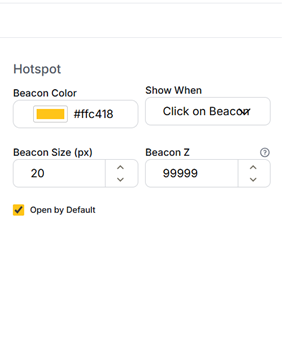
Hotspot
- Beacon Color: Set the color of the hotspot beacon.
- Show When: Choose when the hotspot appears (e.g., "Click on Beacon").
- Beacon Size: Set the size of the beacon in pixels.
- Beacon Z: Set the Z-index of the beacon to control its stacking order on the page.
- Open by Default: Check this box to have the hotspot open automatically.
If you have any questions or need further assistance, please contact our support team.