
A checklist is a collection of items that can be displayed on the entire website or on specific pages.
Creating a New Checklist
- On the Checklists page, click New Checklist
 .
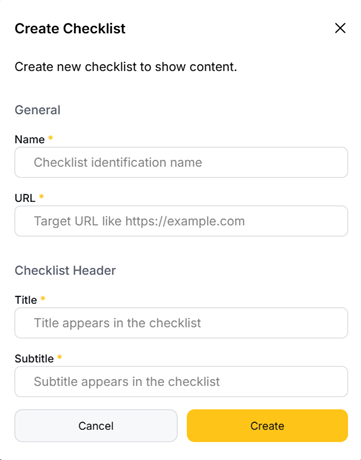
. - In In the pop-up window, enter the required information:
- Name: Enter a name for your checklist.
- URL: Provide the website where the checklist will appear.
- Title: Enter the title that will appear in the checklist header for end users.
- Subtitle: Enter the subtitle that will appear in the checklist header for end users.
- Click Create to finish.
Editing and Managing an Existing Checklist
Once you've created a checklist, you can manage it from the main Checklists page.
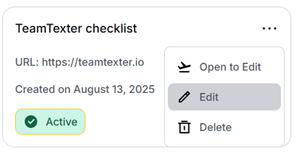
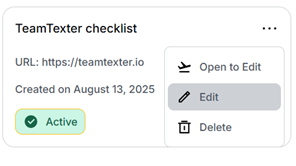
- Hover over the checklist you want to edit.
- Click on the three dots in the top right corner.
- Select Edit from the dropdown menu. This will take you to the Update Checklist page.
Update Checklist Page
On this page, you can update your checklist settings.
Content Tab
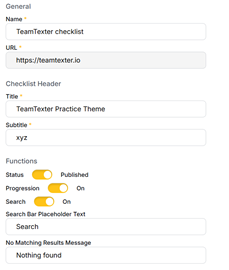
- This tab displays the basic information you provided when creating the checklist.
- General: Update the Name and URL as needed.
- Checklist Header: Edit the Title and Subtitle.
- Functions:
- Status: Toggle this on to Publish your checklist, making it visible to your users.
- Progression: Toggle this on to allow users to track their progress through the checklist.
- Search: Enable this option to allow users to search for checklist items
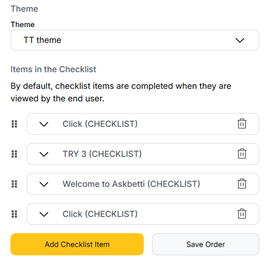
- Theme: Select a theme for your checklist.
- Items in the Checklist: This section shows all the items in your checklist. You can add new items, reorder them by dragging and dropping, or delete them as needed.
Configure Tab
This tab lets you configure more advanced settings for your checklist.
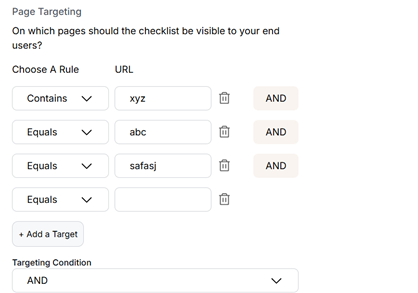
- Page Targeting: This feature lets you control which pages your checklist appears on. Use AND/OR rules to set specific conditions for the URLs. For example, you can show a checklist only on pages that contain "product" AND "feature".’
[Note: To remove a rule, click on the bin icon.].
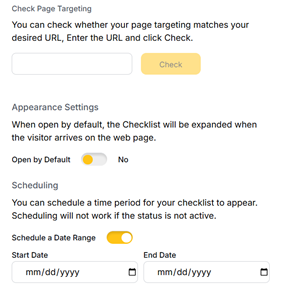
- Behavior: This section lets you set the behavior of your checklist, such as when it should appear or disappear.
- Scheduling: You can also set a date to start and end.
Click on Save or‘Save & Close
Other Actions
From the main Checklists page, you can also perform other actions:
- Open to Edit: This opens the checklist for editing.
- Delete: This will permanently delete the checklist.
If you have any questions or need further assistance, please contact our support team.