
The Hidden action automatically fills or interacts with form elements without prompting the user. Use it to pre-fill fields, trigger clicks, or select options in the background during a user tour.
Step 1: Select Target Element
- Open the extension on the page with the element you want to automate.
- Select the Checklist Item that will trigger this action.
- Click + Action in the configuration panel.
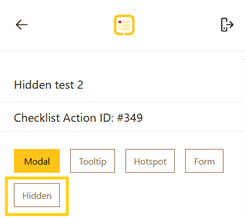
- Select Hidden from the action list.
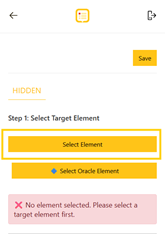
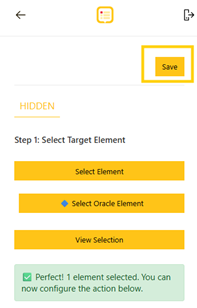
- Click Select Element to choose the target element on your page.
- The extension is minimized. Click the element you want to automate.
- Confirm your selection in the modal.
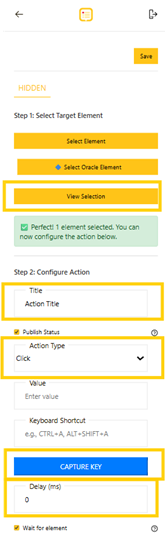
View Selection: After selecting an element, click this button to review your current selection if you want to.
Oracle Platform Users: Use Select Oracle Element for Oracle-based websites requiring specialized selectors.
Step 2: Configure Action
- Title: Enter an internal name for this action (e.g., "Auto-fill Email Field")
- Publish Status: Toggle on to make this action active.
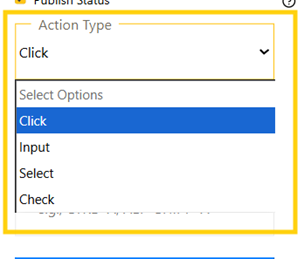
- Action Type: Choose how the hidden action behaves:
- Click: Triggers a click on the selected element
- Input: Enters text into a field
- Select: Chooses an option from a dropdown
- Check: Toggles a checkbox
- Value:
- For Input: Enter the text to autofill (e.g., "user@example.com")
- For Select: Enter the option value or use Select Element to choose from the dropdown.
- Not applicable for Click or Check types.
- Keyboard Shortcut: Optionally set a keyboard combination to trigger this action manually (e.g., CTRL+ALT+S)
- Click on CAPTURE KEY to record a keyboard shortcut. Click on STOP CAPTURE when finished.
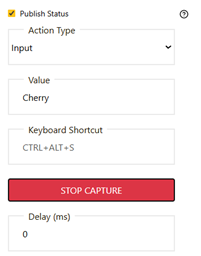
- Delay (ms): Set how many milliseconds to wait before executing this action (0 = immediate)
- Wait for element: Toggle on to ensure the target element is fully loaded before the action executes.
Click Save in the top right corner.
For questions or assistance, please contact our support team.