
The Form action is a specialized INPUT Step dedicated to visually validating form fields on a page and providing step-by-step guidance.
Step 1: Add the Form Action
Open the extension on the page with the form you want to validate
Select the Checklist Item that will trigger the validation
Click + Action in the configuration panel
Select Form.
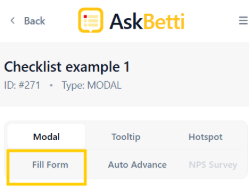
Step 2: Select Form Fields
Set a title for the action
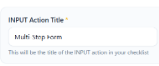
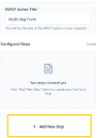
Click + Add New Step in the configuration panel
Click on Select Element/Select Oracle Element/Select Non-Form Element, depending on your needs.
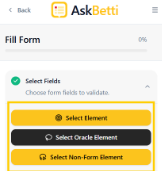
Click on the form field (input boxes, text areas) you want to guide or validate
Confirm each field selection in the modal that appears
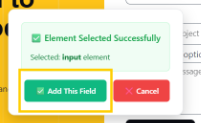
Repeat until all desired fields are selected
The Selected Fields count will update as you work
Oracle Platform Users Only: Use Select Oracle Element if your website requires Oracle-specific selectors for stability.
Note: You can use Select Non-Form Element to select elements that are not part of the form. It’s mainly used to highlight an area which is not part of the form field.
Step 3: Configure Field Validation Rules
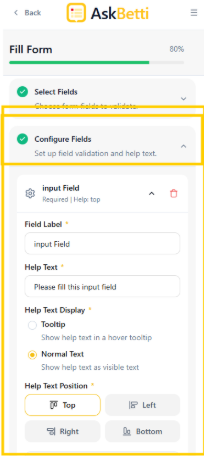
Navigate to Configure Fields in the configuration panel
Click the gear icon next to each field to expand its settings
Set the following for each field: Field Label: Internal name for the field Help Text: Guidance message for users (e.g., "Please fill this input field") Help Text Display:
Tooltip: Shows as hover text
Normal Text: Shows as visible text next to field
Help Text Position: Top, Bottom, Right, or Left Required Field: Toggle on to make field mandatory
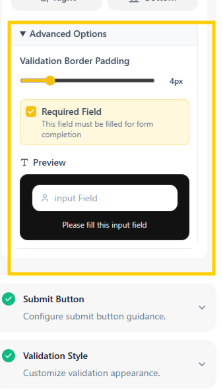
Step 4: Configure Submit Button
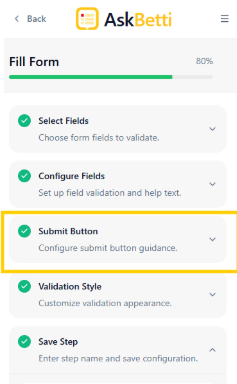
Navigate to Submit Button (Step 3 of INPUT Step creation)
Toggle the Submit Button Guidance to enable and expand its settings (by default it’s disabled) 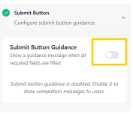
Click on Select Submit Button 
Select the submit button from the form
Confirm the selection in the modal 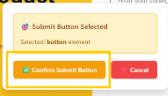
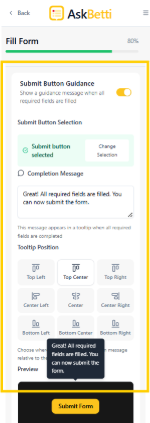
Button configuration panel will expand after you’ve selected a button:
Completion Message: Enter the text users will see when validation is complete (e.g., "Great! All required fields are filled. You can now submit the form.")
Tooltip Position: Choose where the message appears relative to the submit button using the 9-point grid (Top Left, Top Center, Top Right, Center Left, Center, Center Right, Bottom Left, Bottom Center, Bottom Right). Select a position that doesn't block the button or critical form elements.
Preview: View a live rendering of your message and its position before saving.
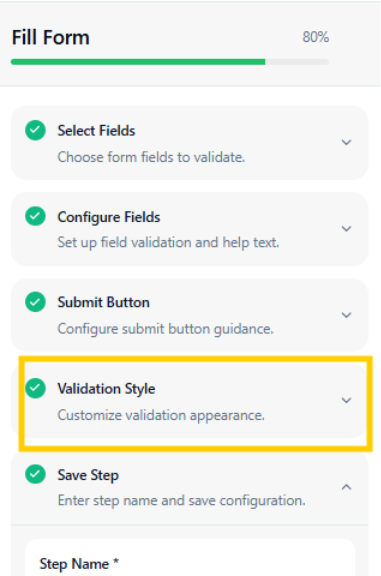
Step 5: Validation Style Configuration
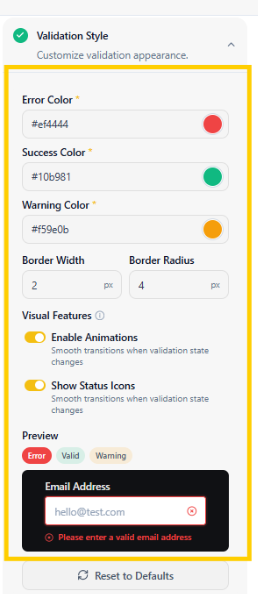
Customize the visual appearance of field validation states to match your brand or provide clear user feedback.
Validation Colors
Error Color: Set the color for invalid or incomplete fields
Success Color: Set the color for correctly filled fields
Warning Color: Set the color for fields requiring attention
Quick Presets: Choose from pre-configured color themes:
Default
Blue Theme
Green Theme
Purple Theme
Minimal
Border Styling:
Border Width: Adjust the thickness of field borders using the slider (measured in pixels)
Border Radius: Control the roundness of field corners using the slider (measured in pixels)
Visual Features:
Enable Animations: Toggle on to show smooth transitions when validation state changes
Show Status Icons: Toggle on to display checkmarks and warning icons next to fields
Live Preview:
Test your validation styling in real-time:
Preview State: Click Error, Valid, or Warning to see how fields will appear in each state
Sample Field: View a live example field with your current styling settings
Click Reset to Defaults to restore original validation styling settings (if needed).
Step 5: Finalize and Save
Navigate to Save Step (Step 5)
Enter a Step Name (required) and optional Description
Review the Configuration Summary to verify field counts and submit button status
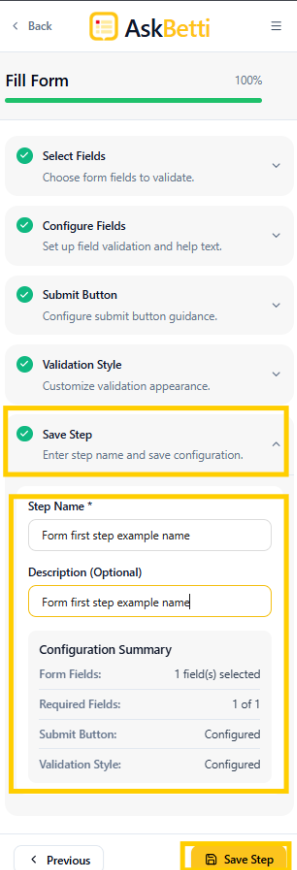
Step will be created.
Repeat the same process to create Multi-Step Form.
You can add more steps by clicking on the + Add Another Step
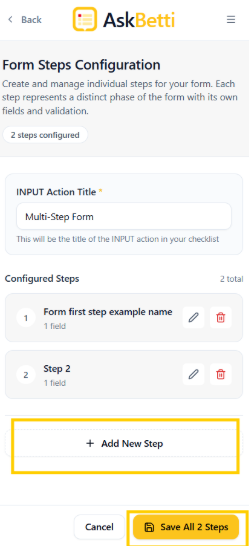
And then repeat all the steps shown earlier.
Name the step.
Click on Save All
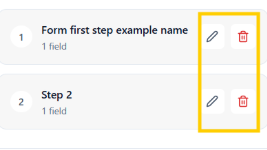
You can edit a form step by clicking on the Pen Icon, or Delete by clicking on the Trash Icon
Click on Update All Steps to save the Multi-Step From.
For questions or assistance, please contact our support team.