
A Checklist Action is the fundamental, specific event triggered when a user interacts with a Checklist Item. It determines the interactive content, behavior, or validation process executed on the page.
To add content, follow these steps:
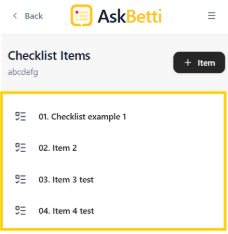
Open the extension and select a checklist Item.
Select an Action.
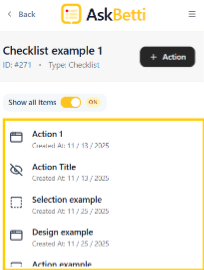
Review the options available in the right-hand configuration panel.
By default, the modal appears at the center of the webpage unless its position is manually changed.
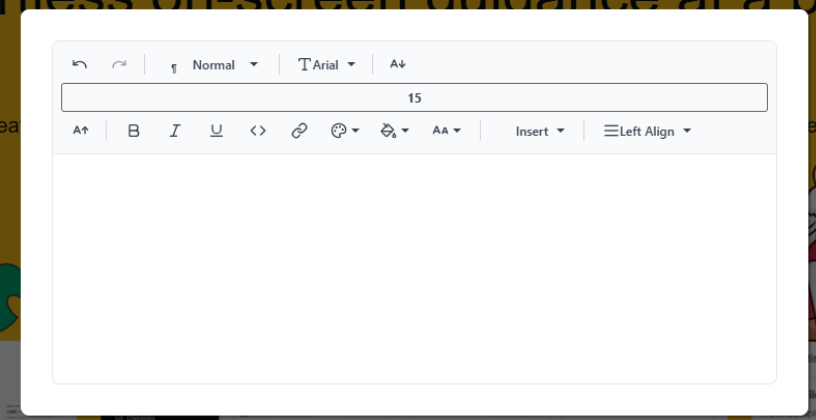
The following features are available in the editing area:
Undo/Redo Arrows (Top Left): Revert or reapply the last typing action.
Text Style Dropdown (Normal): Apply predefined formatting styles (e.g., Heading 1, Paragraph).
Font Family Dropdown (Arial): Change the typeface of the selected text.
Font Size Input (15): Adjust the size of the selected text (e.g., $15\text{px}$).
Increase/Decrease Font Size Arrows (Top Right A+ / A-): Quickly change font size.
Bold (B), Italic (I), Underline (U): Apply basic text emphasis formatting.
Code (<>) / Link (Chain Icon): Insert a link or format text as code.
Insert Image/Video/File (Picture/Filmstrip Icon): Embed media files.
Text Color / Background Color (Tear-drop icon with color swatch): Change the text or highlight color.
Insert Dropdown (Insert): Access options to add special elements (e.g., horizontal line, special characters).
Text Alignment Dropdown (Left Align): Set the text justification (Left, Center, Right, Justify).
Add your content to the editing area.
Click Save.
If you have any questions or need further assistance, please contact our support team.